In this article you will learn how to connect timeBuzzer with sevdesk accounting software to streamline invoicing.

Connect timeBuzzer to sevdesk #
- Log in to the timeBuzzer web console.
- Open the Settings.
- Select Integrations.
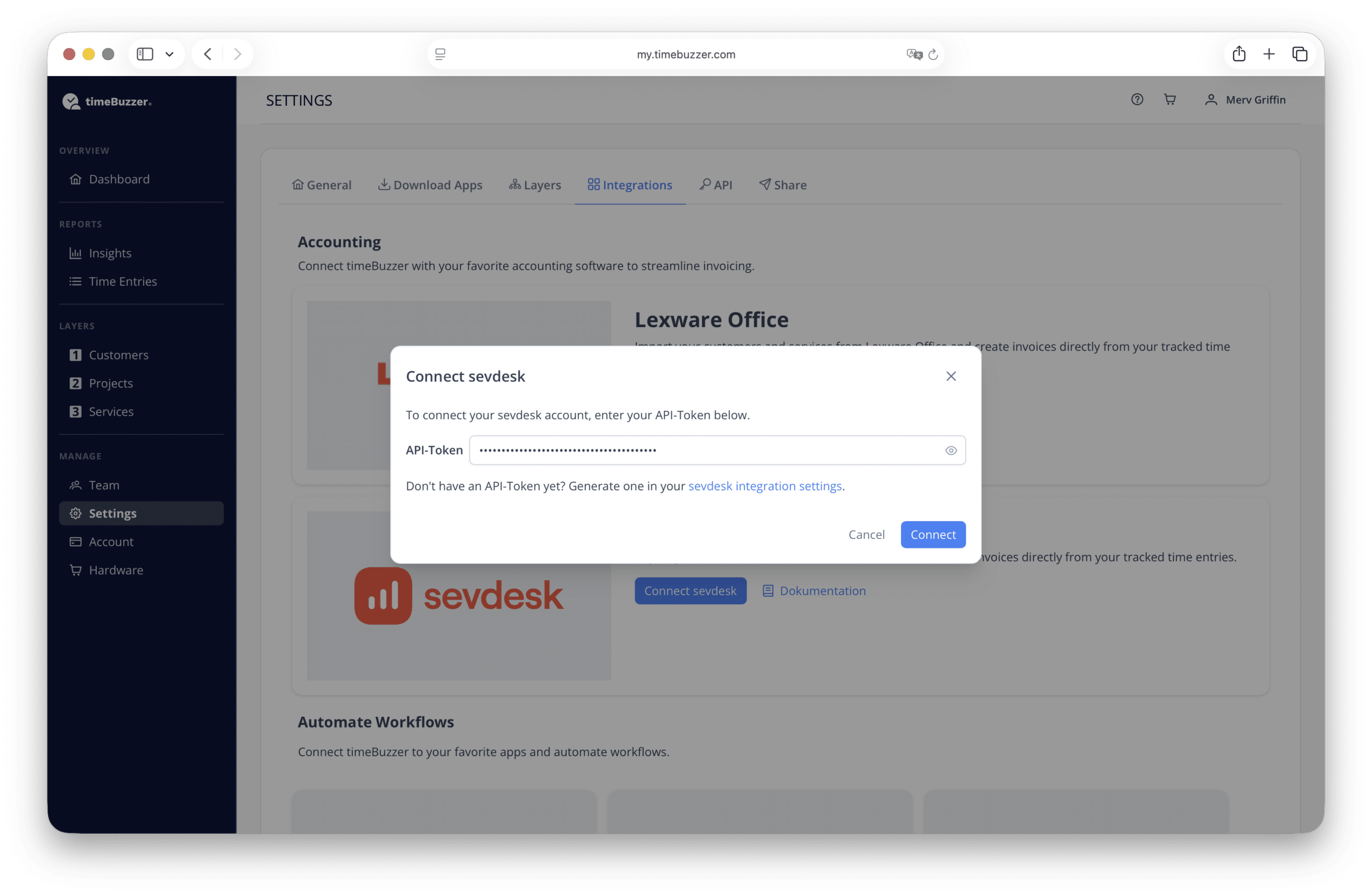
- Search for sevdesk in the list and click Connect sevdesk.
- Enter your sevdesk API key (If you don’t have an API yet, you can generate one in the sevdesk integration settings.
- Click connect
Your timeBuzzer account is now connected to sevdesk!
Create sevdesk invoices directly in timeBuzzer #
- Go to Time entries in timeBuzzer.
- Select the time period for your invoice (this defines the service period).
- Apply filters if necessary.
- (Optional) Activate time rounding if you want to round time entries for the invoice.
- Click on Export.
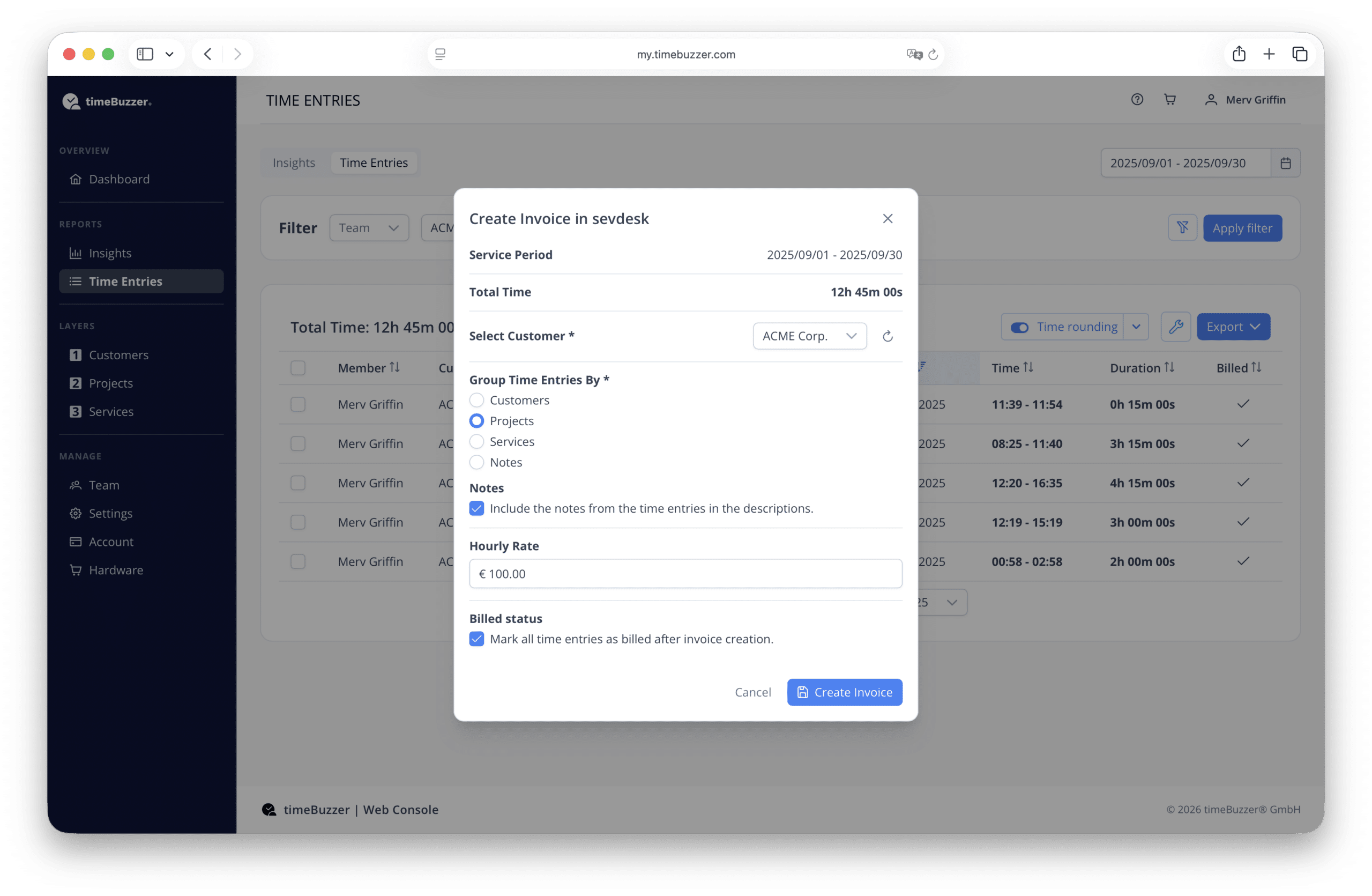
- Select sevdesk as the export option.
- Select the customer from your sevdesk customer list.
- Select how the time entries should be grouped (by layers or notes).
- (Optional) Transfer notes from the time entries to the invoice description. Identical notes are summarized.
- Set the hourly rate.
- Note: Currently, you can enter a general hourly rate.
If you have different hourly rates for different positions, you can adjust this in the next step in the invoice in sevdesk. - (Optional) Activate Mark as billed to automatically mark time entries after the invoice has been created.
- Click on Create invoice.
- Note: Currently, you can enter a general hourly rate.
Note: In order to create an invoice for a sevdesk customer in timeBuzzer, you must enter an address for the contact in sevdesk so that it can be included in the invoice.
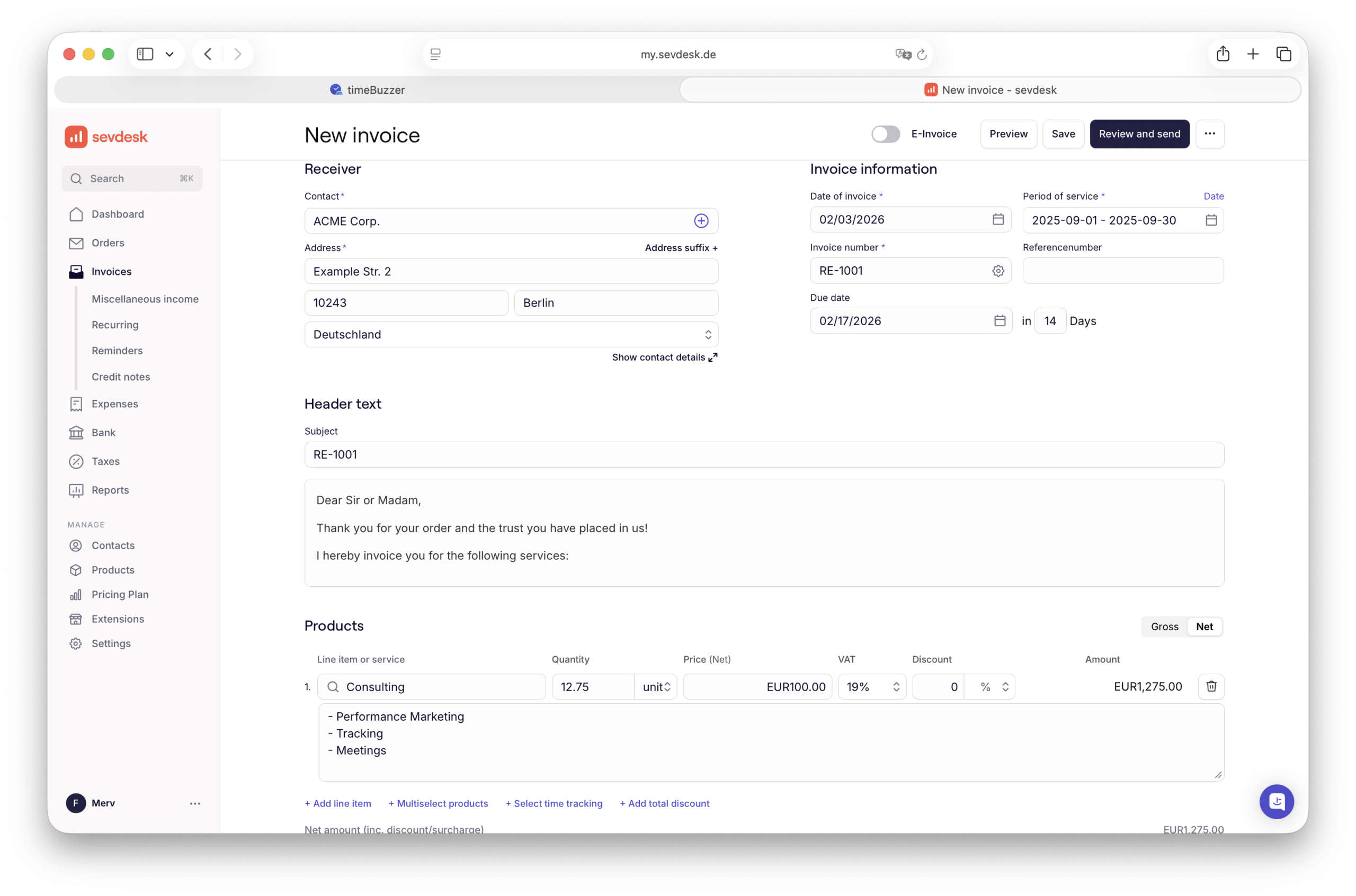
- Click show invoice to open it in sevdesk (opens in a new tab).
- Check and edit your pre-filled invoice.
- Click Preview and then Send.
- Done!
Importing customers from sevdesk (optional) #
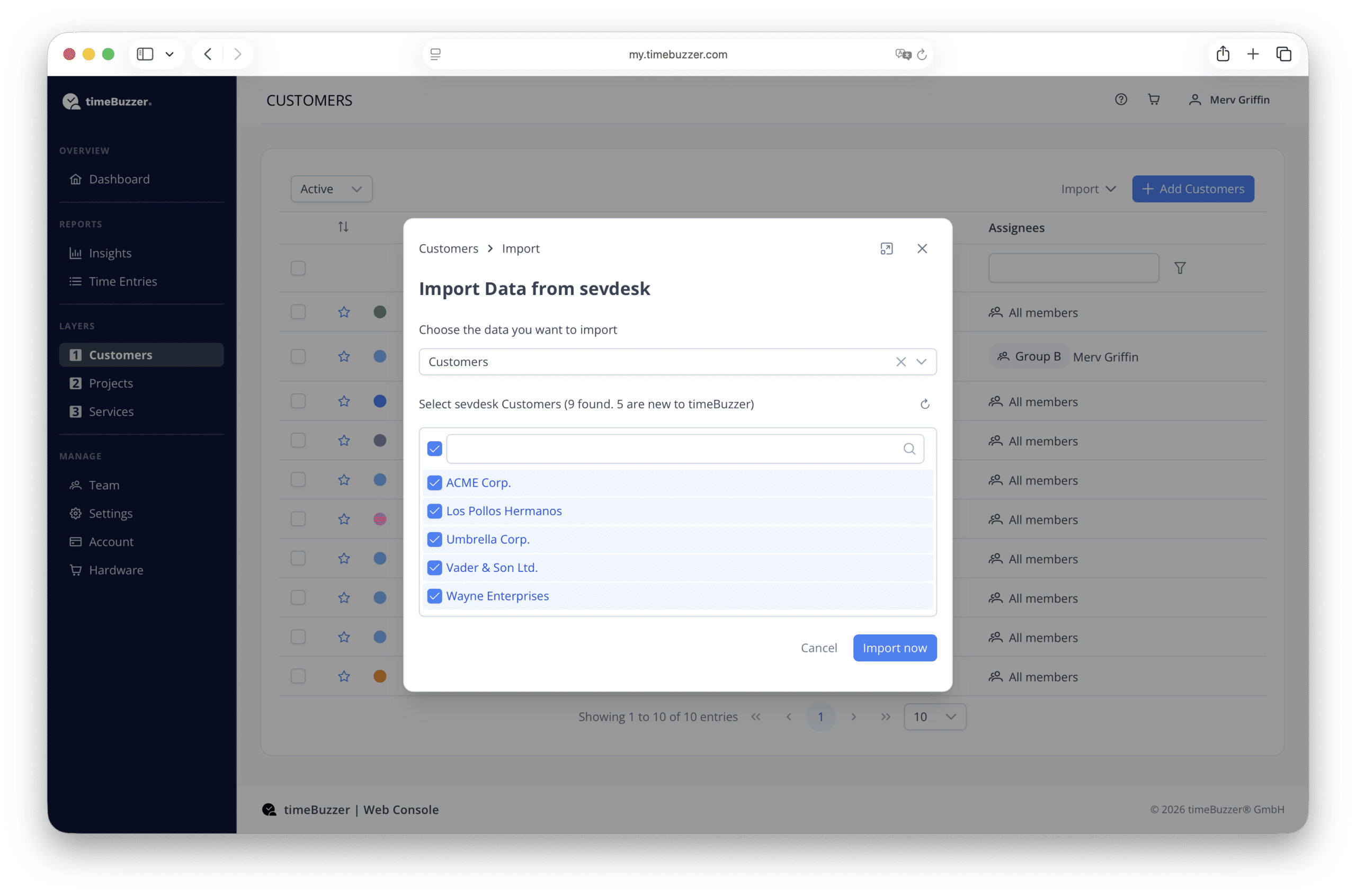
You can import sevdesk customers into any timeBuzzer layer.
- Go to the layer to which you want to import customers.
- Click on Import.
- Select sevdesk
- Select customers
- Select the customers you want to import.
- Only new customers that do not yet exist in this layer in timeBuzzer are displayed. The system checks whether there are already customers with the same name. (Exact match)
- Click on Import.
Import services from sevdesk (optional) #
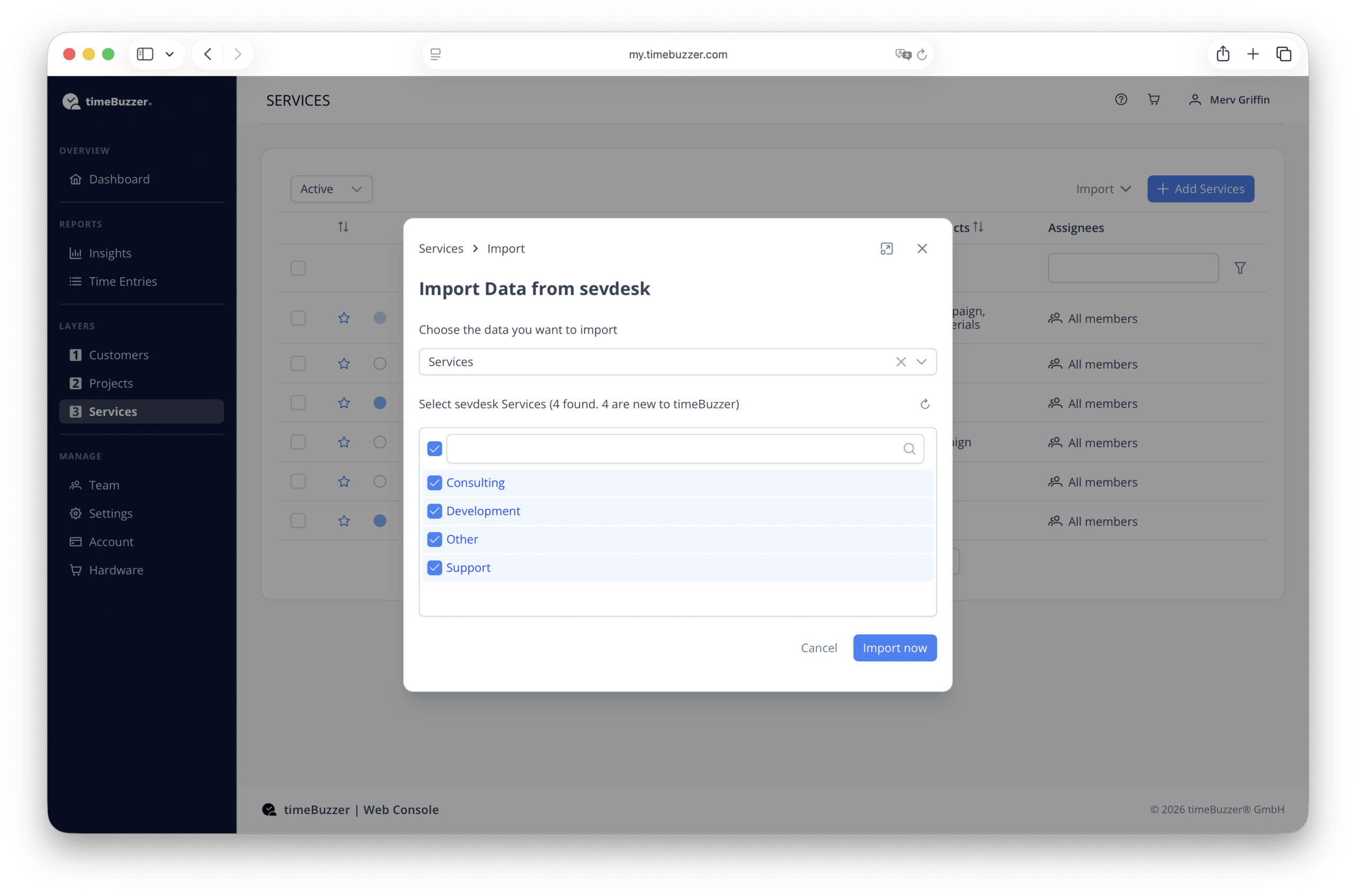
You can also import sevdesk services into any timeBuzzer layer.
- Click on the layer into which you want to import services.
- Click on Import.
- Select sevdesk → Services.
- Select the services you want to import.
- Note: Only new services that do not yet exist in timeBuzzer are displayed. The system checks whether services with identical names already exist.
- Click on Import.
FAQ #
I can’t connect, what am I doing wrong?
First, please ensure that the API token from sevdesk is correct and valid.
If you have entered the API token correctly and the connection still does not work, it is likely that your sevdesk account has not yet been migrated to version 2.0. Further information about the sevdesk 2.0 update
In this case, we recommend contacting sevdesk support and asking if they can safely migrate your sevdesk account to version 2.0.
After your account is on version 2.0, you should be able to connect.
If that’s still not the case, please contact our support.
What do I need to use the integration?
You need a timeBuzzer Pro account and a sevdesk account with a plan that supports partner integrations.
Which layers can I import to?
You can import both customers and services into any layer. This allows you to tailor the integration perfectly to your individual structure.
Is there an automatic import available?
Currently automatic import is not supported for sevdesk.
I only record projects in timeBuzzer – can I still bill sevdesk customers?
Yes, that works. Import and export are independent of each other. Even if you don’t track time on “customers” or haven’t imported sevdesk customers in timeBuzzer, the export will always show you your sevdesk customers. This means you can still bill your recorded project times for each sevdesk customer.
Who can use the integration?
Only users with the Administrator role can create sevdesk invoices or import sevdesk customers and services in timeBuzzer. Managers and regular users do not have access to these functions.
Which contacts are imported?
All contacts in sevdesk except “Suppliers” are available for import into timeBuzzer.
Which products are imported?
All proudcts in sevdesk that are categorized as service are available for import into timeBuzzer. Currently, only the names are transferred; hourly rates cannot be imported at this time.
Articles are not available for import into timeBuzzer.