
In this article, you’ll learn how to connect timeBuzzer with orgaMAX to automate invoicing.

Connect timeBuzzer to orgaMAX #
- Log in to the timeBuzzer web console.
- Open the Settings.
- Select Integrations.
- Search and select orgaMAX in the list and click Connect.
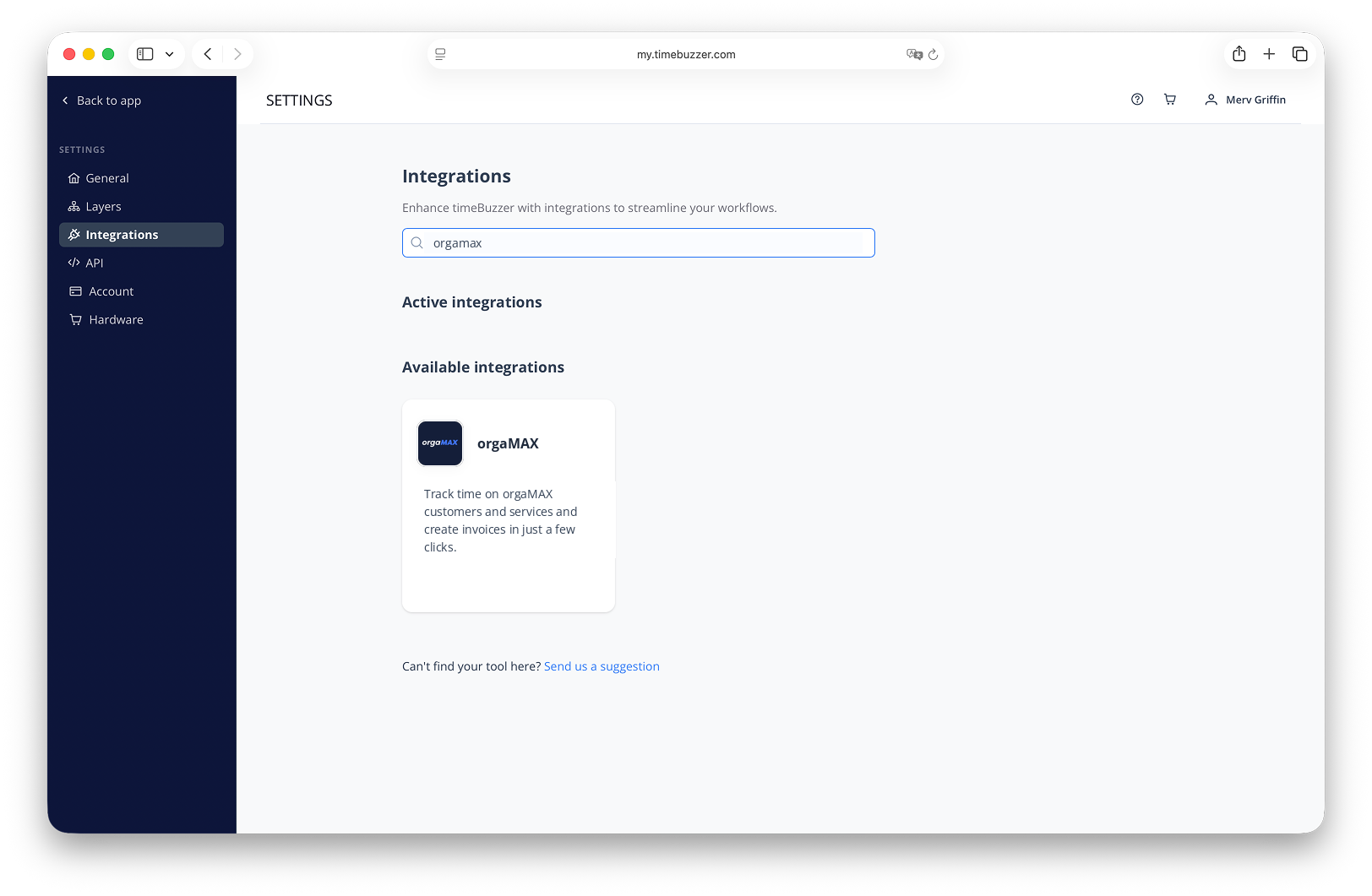
- You will be redirected to the orgaMAX.
- Log in with your orgaMAX credentials.
- Go to orgaMAX marketplace and activate the timeBuzzer extension.
- Click Open extension (You’ll be redirected back to timeBuzzer and the integration will be activated.)
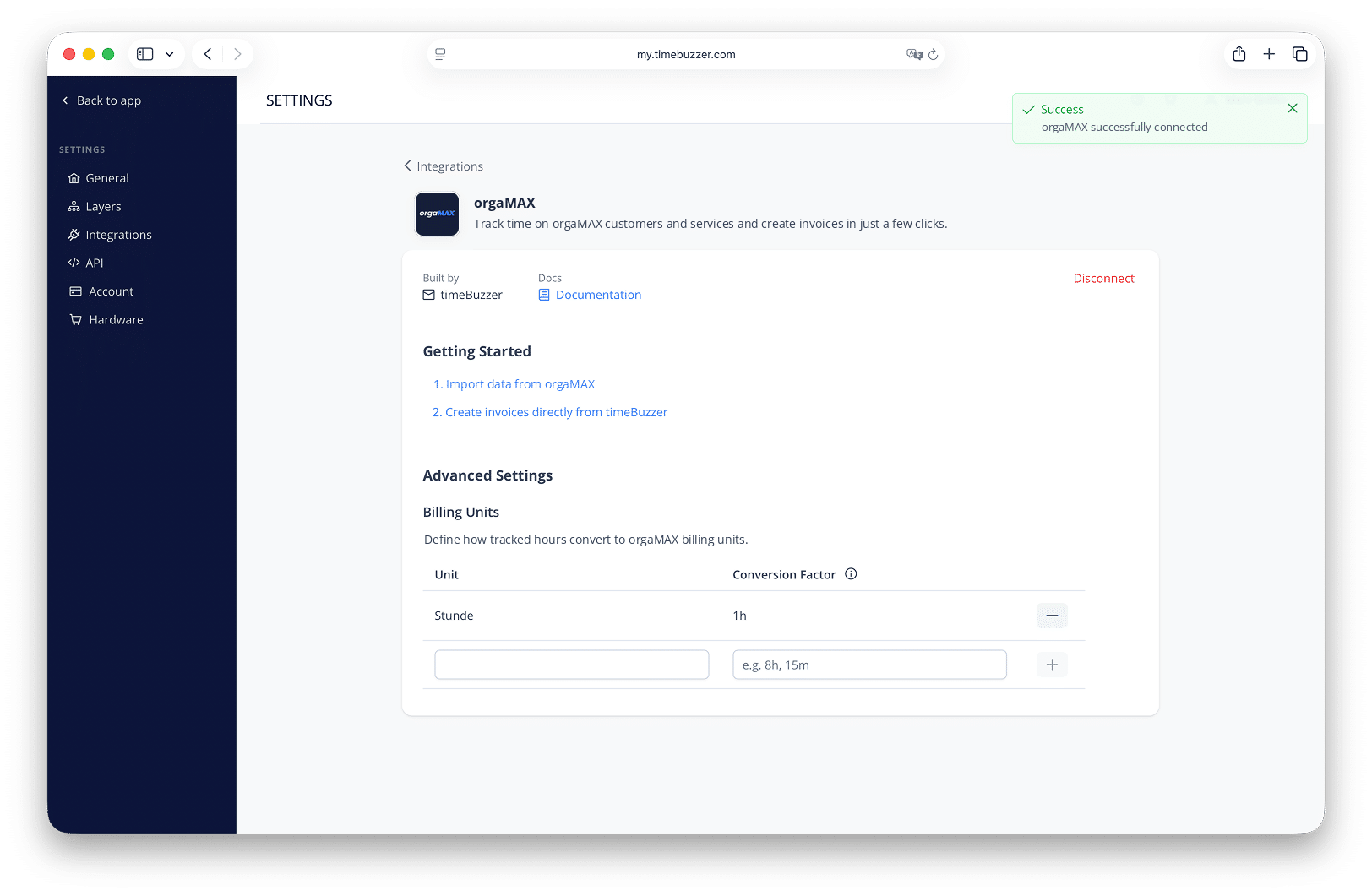
Your timeBuzzer account is now connected to orgaMAX!
Importing customers from orgaMAX #
You can import orgaMAX customers into any timeBuzzer layer.
- Go to the layer to which you want to import customers.
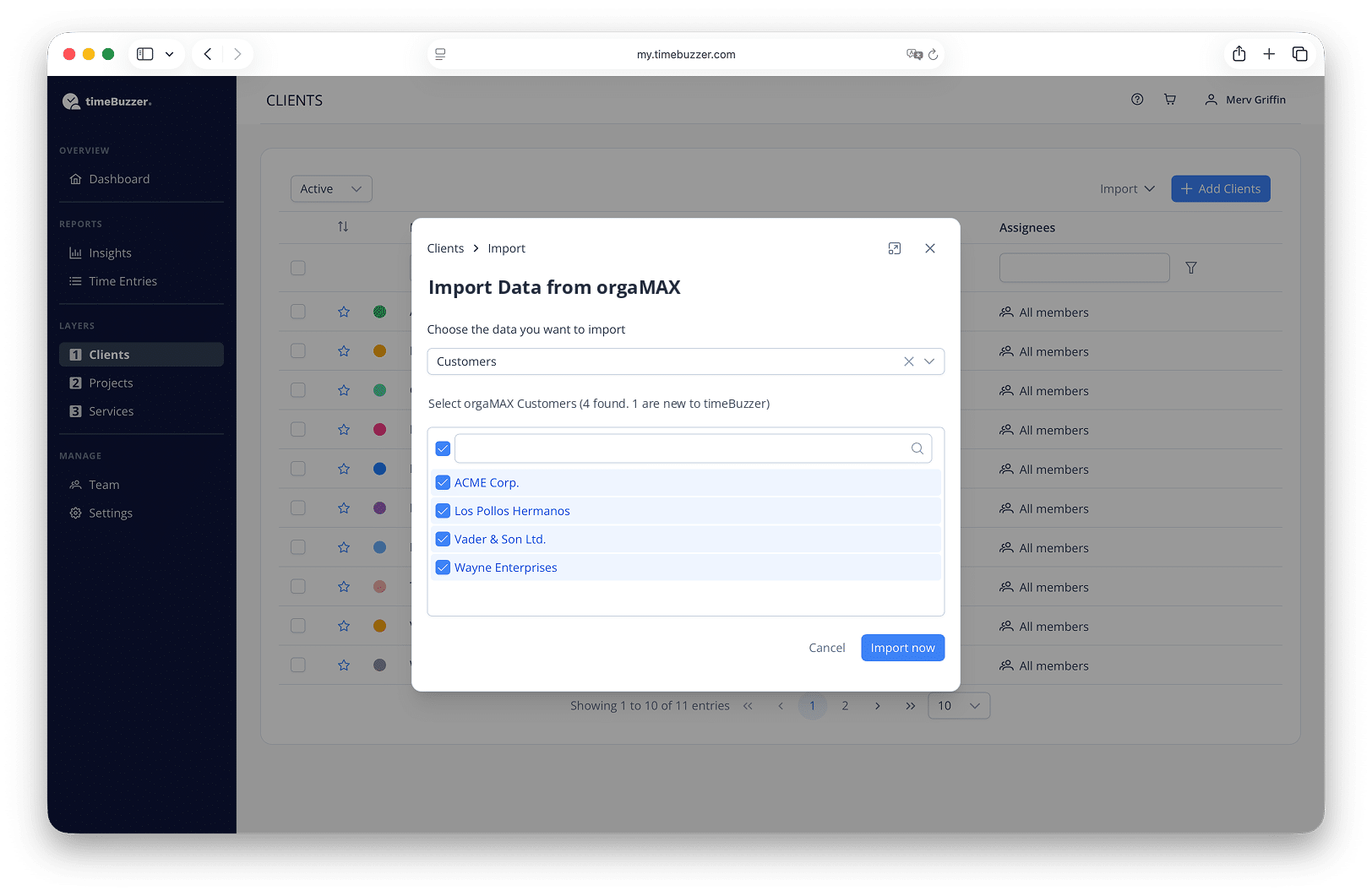
- Click on Import.
- Select orgaMAX → Customers.
- Select the customers you want to import.
- Only new customers that do not yet exist in timeBuzzer are displayed. The system checks whether there are already customers with the identical name.
- Click on Import.
- Done. The imported customers will appear in your list with an external link that takes you directly to the respective customer in orgaMAX.
Import services from orgaMAX #
You can also import orgaMAX services into any timeBuzzer layer.
- Click on the layer into which you want to import services.
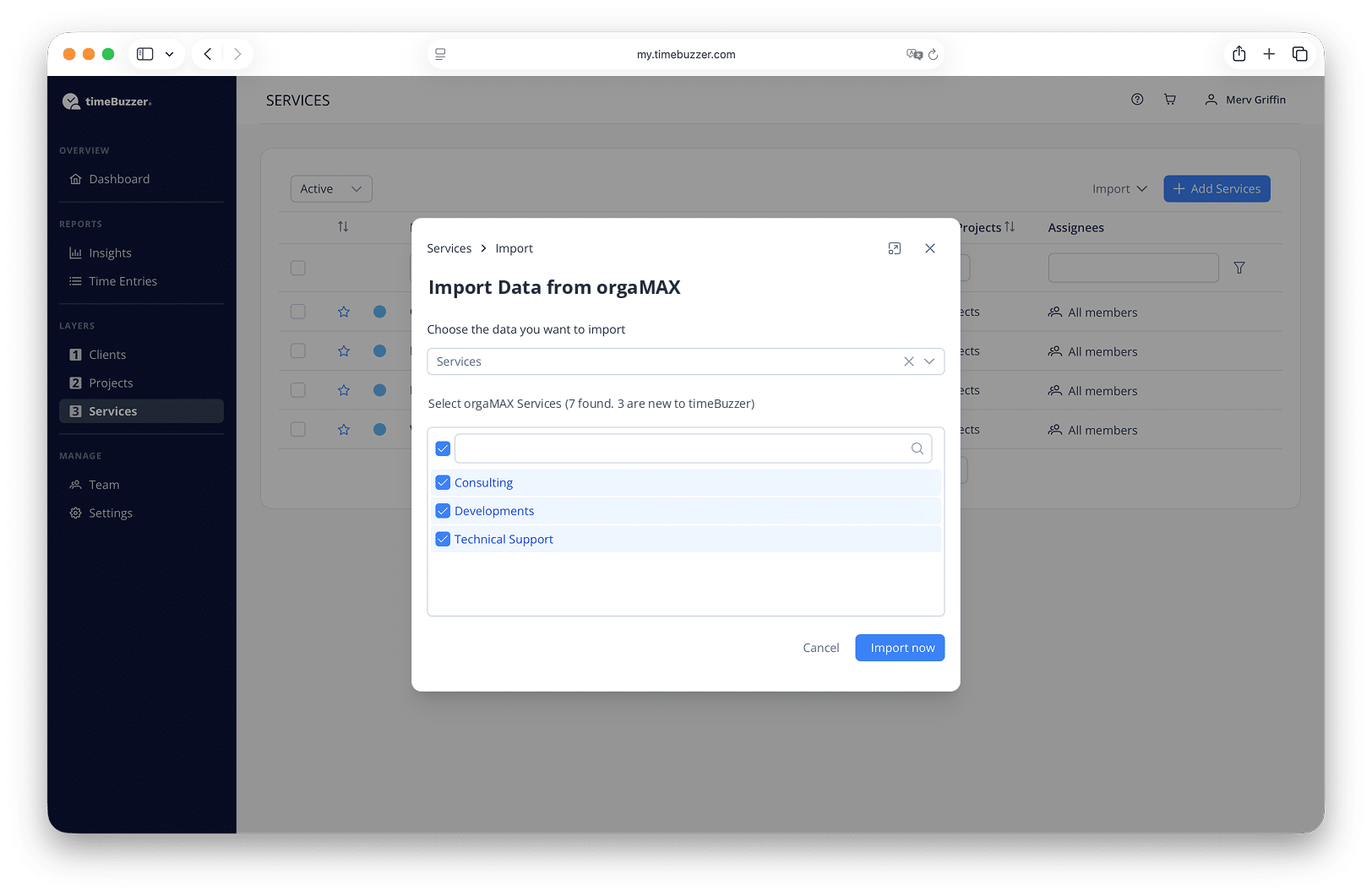
- Click on Import.
- Select orgaMAX → Services.
- Select the services you want to import.
- Note: Only new services that do not yet exist in timeBuzzer are displayed. The system checks whether services with identical names already exist.
- Click on Import.
- Done. The imported services will appear in your list with an external link that takes you directly to the respective service in orgaMAX.
Create orgaMAX invoices directly in timeBuzzer #
- Go to Time Entries in timeBuzzer.
- Select the time period for your invoice (this defines the service period).
- Apply filters or select specific time entries.
- (Optional) Activate time rounding if you want to round time entries for the invoice.
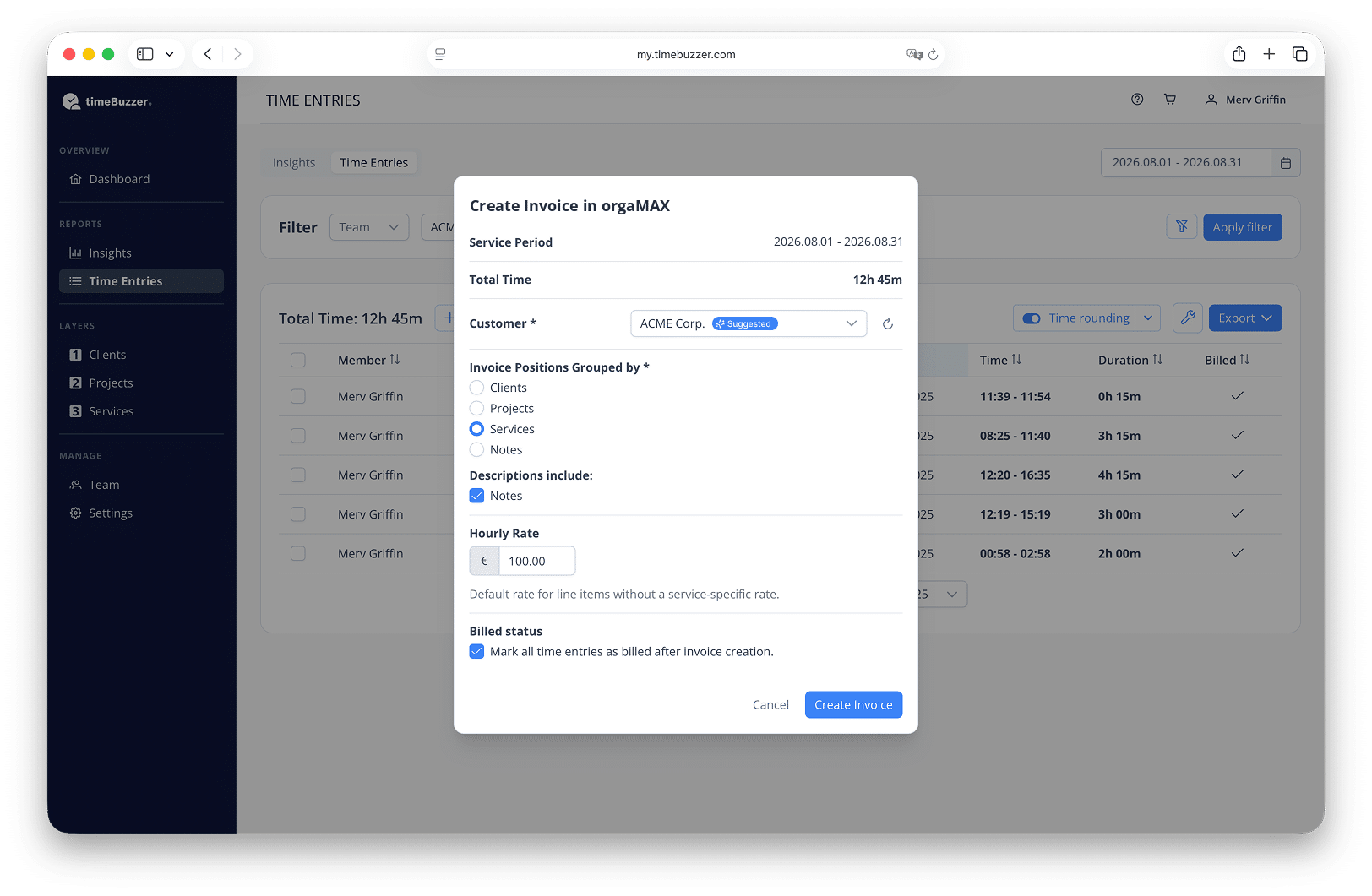
- Click on Export.
- Select orgaMAX as the export option.
- Continue with the suggested contact based on your filters or manually select your orgaMAX customer to create an invoice for. The contact must have an address in order to create an invoice for it.
- Select how the time entries should be grouped (by layers or notes).
- (Optional) Transfer notes from the time entries to the invoice description. Identical notes are combined.
- (Optional) Set the default hourly rate.
- Note: If you have hourly rates defined for your services in your orgaMAX and you group by the layer in which you have imported that services, those hourly rates, currencies, taxes and units will be automatically applied.
- (Optional) Activate Mark as billed to automatically mark time entries after the invoice has been created.
- Click on Create invoice.
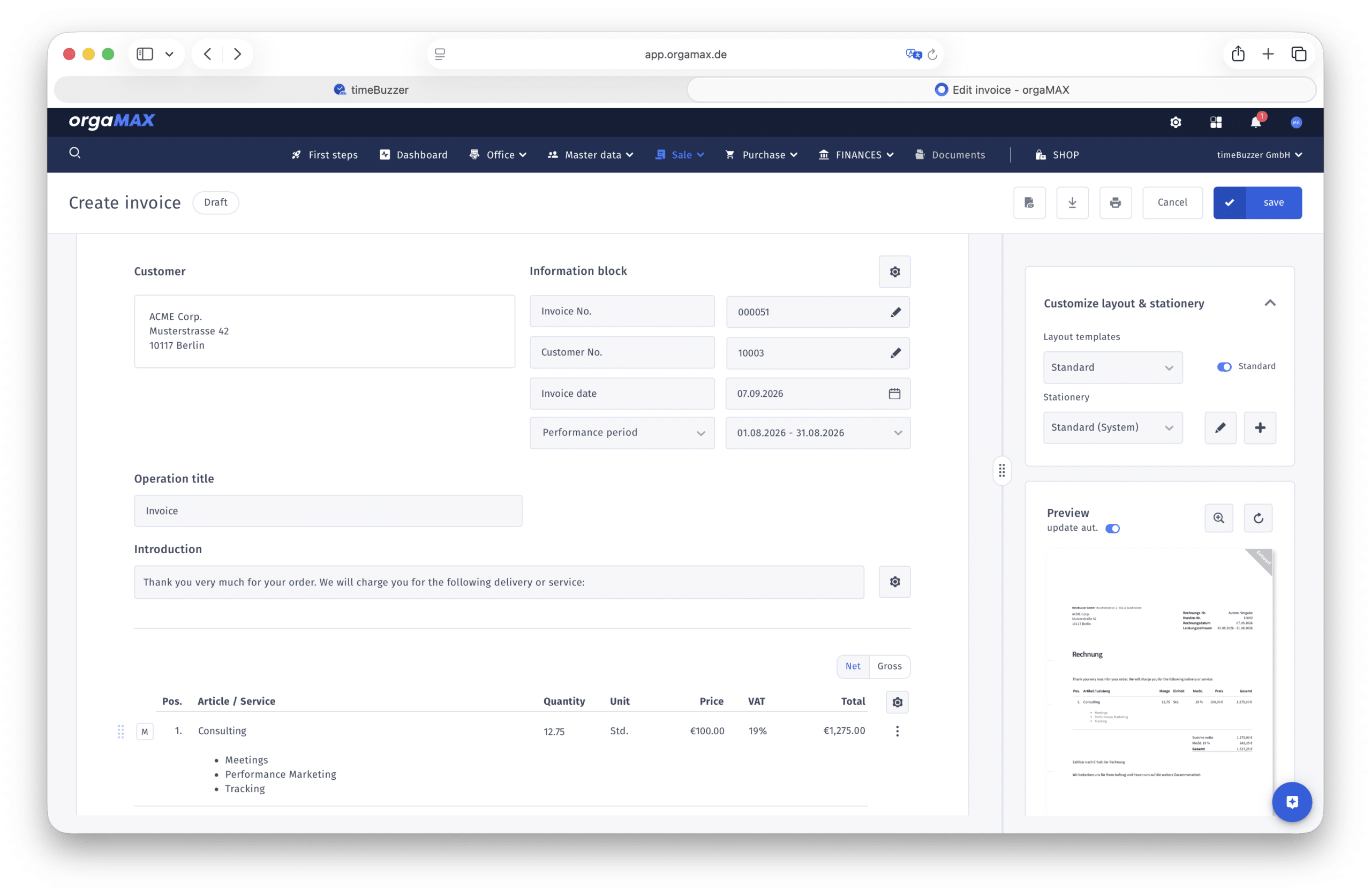
- Select Show invoice to open it in orgaMAX (opens in a new tab).
- Check and edit your pre-filled invoice.
- Click Save and then Send.
- Done!
Define custom billing units #
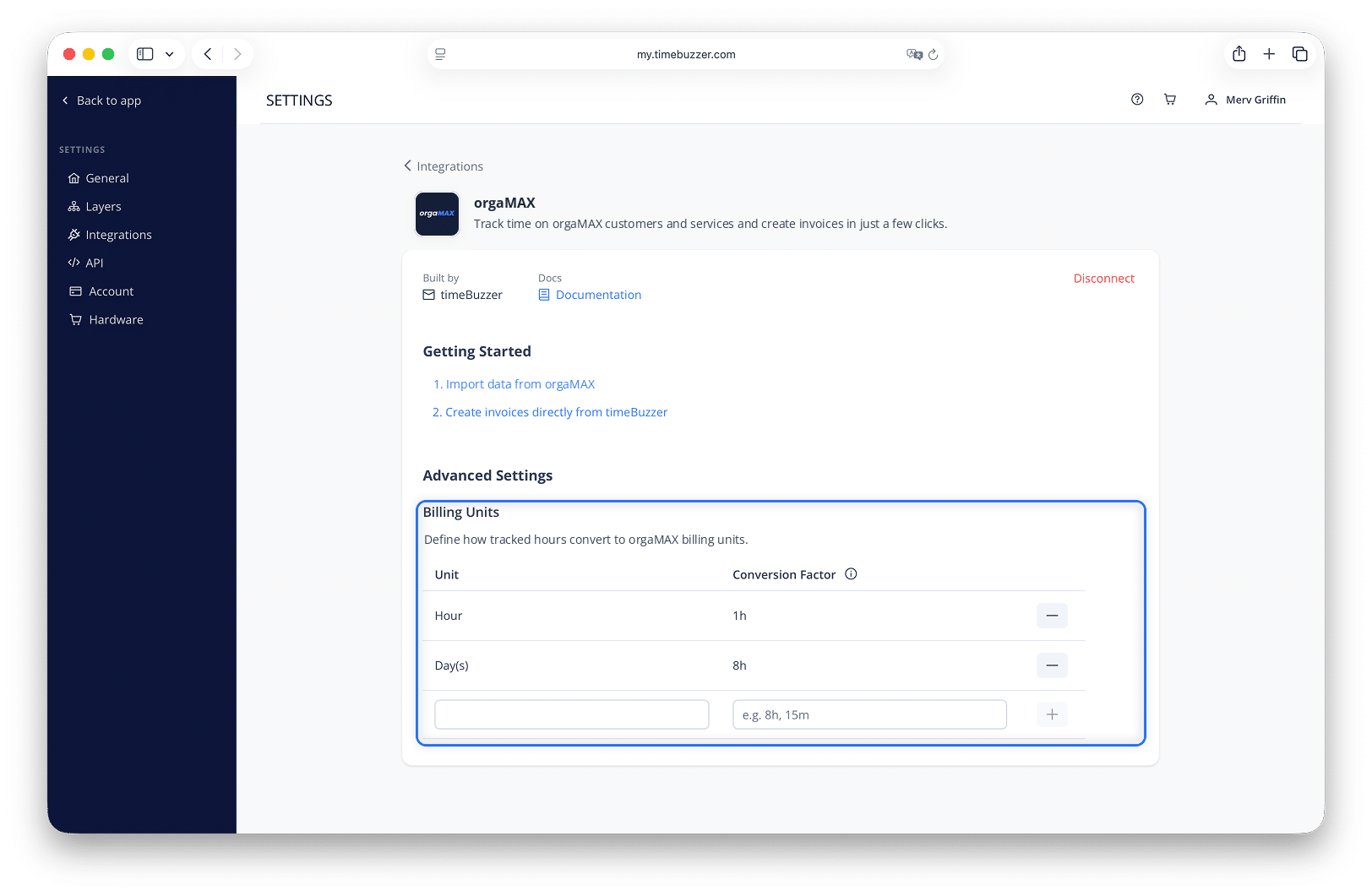
timeBuzzer tracks time in hours. If you bill some services differently in orgaMAX, add a custom unit with a conversion factor.
Examples:
- You bill a service by the day. Add the unit “Day(s)” with a conversion factor of 8h.
- You bill in 15-minute increments. Add the unit “Work unit” with a conversion factor of 15m.
timeBuzzer converts your tracked hours automatically when you create an invoice.
Requirements:
- The unit must also exist in orgaMAX.
- You need to use services in orgaMAX, and import and connect them in timeBuzzer.
- When generating the invoice, group by “services”.
You can set different units for different services.
FAQ #
What do I need to use the integration?
You need a timeBuzzer Pro account and a orgaMAX account with a plan that supports partner integrations and writing invoices.
Which layer structure in timeBuzzer is recommended?
As orgaMAX is structured in customers and services, we usually recommend using two layers with “customers” in the first and “services” in the second layer.
However, generally you can import both customers and services into any layer. This allows you to tailor the integration perfectly to your individual structure.
Can I invoice orgaMAX customers without importing them?
Yes. Import and export work independently, so you can invoice orgaMAX customers with tracked time even if you haven’t imported them into timeBuzzer.
This is useful if you don’t structure timeBuzzer by customer, for example if you only track by project. You can still assign your tracked time to a orgaMAX customer when creating the invoice.
Who can use the integration?
Only users with the Administrator role can create orgaMAX invoices or import orgaMAX customers and services in timeBuzzer. Managers and regular users do not have access to these functions.
What can be imported?
You can import customers and articles from orgaMAX.